CineFrustum Plugin
CineFrustum is a native UE5 plugin that lets you spawn a render-ready camera frustum directly from any CineCamera in your scene — with a single right-click. Built for virtual production, technical visualization, and pre-production planning.
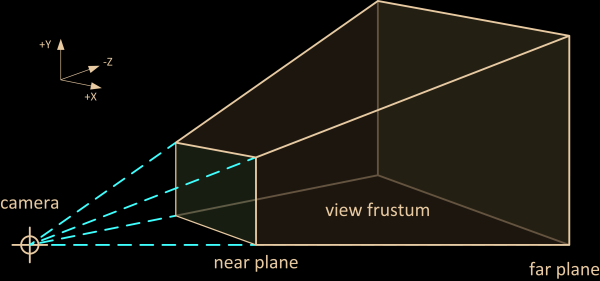
A camera frustum is the 3D volume of space visible to a camera — defined by the lens focal length and sensor dimensions. CineFrustum visualizes this volume as a real actor in your scene that you can actually render.
Requirements
Before installing CineFrustum, make sure your setup meets the following requirements.
| Requirement | Detail |
|---|---|
| Unreal Engine | 5.6 & 5.7 |
| Operating System | Windows 10 / 11 (64-bit) |
| UE Plugin Dependency | Live Link (built-in, enabled by default) |
| Project Type | Blueprint or C++ projects — both supported |
| Camera Type | CineCameraActor only |
Enable the Plugin
Open Plugin Manager
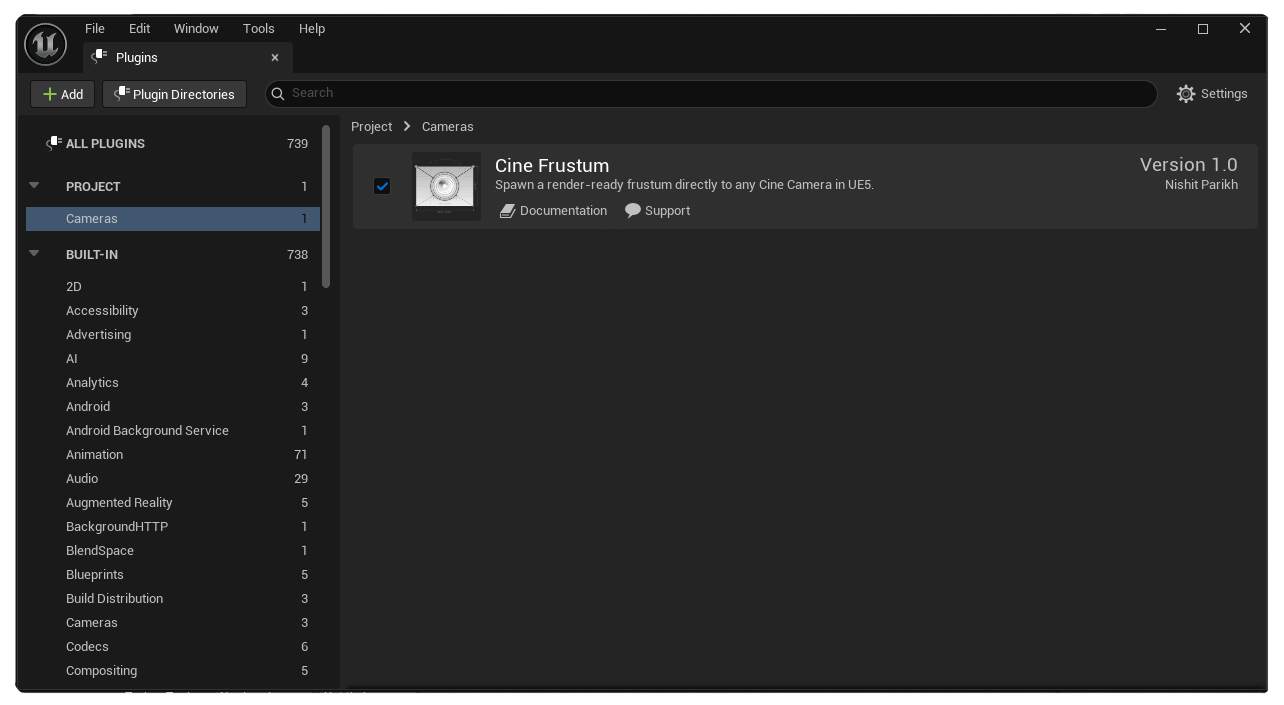
In the Unreal Editor, go to Edit → Plugins to open the Plugin Manager.
Search for CineFrustum
Type CineFrustum in the search box. The plugin should appear under the Camera category.
Enable and restart
Toggle the plugin to Enabled if it isn't already, then click Restart Now when prompted.
Basic Workflow
CineFrustum is designed for speed. The entire workflow from selection to render is three steps.
Select a CineCamera in your level
Click any Cine Camera in the viewport or World Outliner. You can select multiple cameras at once — CineFrustum will process each one.
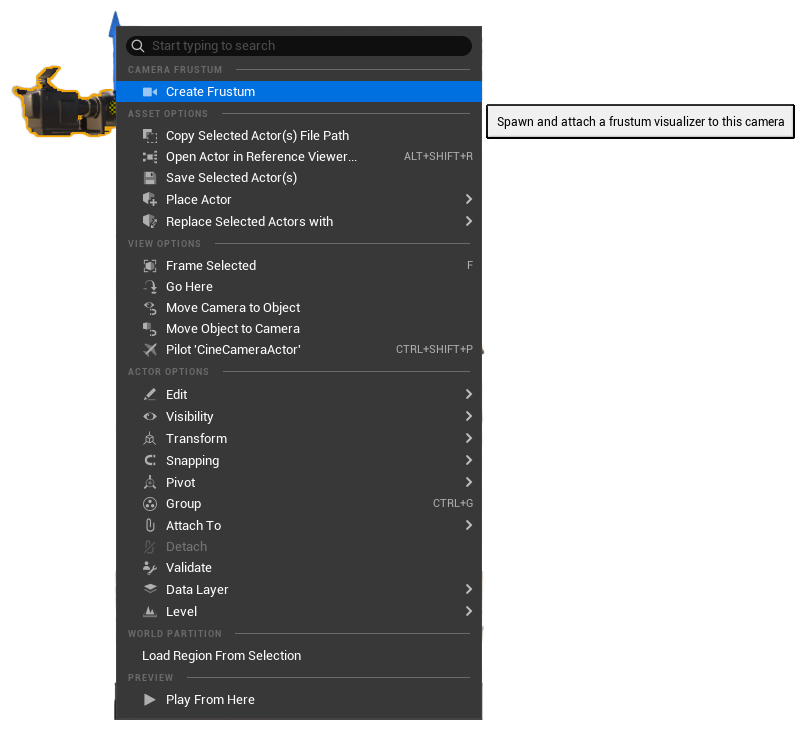
Right-click → Create Frustum
A Camera Frustum section appears at the top of the right-click menu. Click Create Frustum. The plugin handles everything — spawning, scaling, labelling, and attaching the frustum to the camera.
Render
The frustum is a real actor in your scene. It renders in Movie Render Queue, Sequencer, and the Path Tracer — exactly as you see it in the viewport.
Right-Click Menu
The right-click context menu is the primary way to interact with CineFrustum. The option only appears when a valid CineCameraActor is selected.
The Camera Frustum section appears at the very top of the context menu when a CineCamera is selected — above all other Unreal Engine default options for fast access.
Menu behaviour
- Create Frustum — Spawns, scales and attaches a frustum to the selected camera automatically.
- Greyed out — If the selected camera already has a frustum attached, the option is automatically disabled to prevent duplicates.
- Multi-selection — If multiple cameras are selected, CineFrustum spawns a frustum on each camera that doesn't already have one, and skips those that do.
Frustum Properties
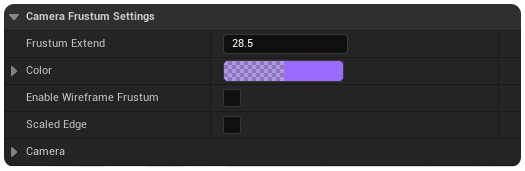
Once spawned, the frustum actor appears in your World Outliner and can be selected and inspected in the Details panel.
| Property | Description |
|---|---|
| Frustum Extend | A scalar multiplier that uniformly extends the frustum size. Default is 28.5. |
| Color | The display color of the frustum in the viewport and render. |
| Enable Wireframe | Toggle wireframe display mode for the frustum actor. |
| Scaled Edge | Makes the frustum outline thicker so it's easier to see in the viewport. |
| Camera | The CineCameraActor this frustum is driven by. Set automatically on spawn. |
Rendering
The CineFrustum actor is a standard Unreal Engine actor — it renders in any render pipeline without special configuration.
Movie Render Queue · Sequencer · Path Tracer · Viewport Render · Real-time Preview
Rendering tips
- Use Actor Hidden in Game in the Details panel to hide the frustum from final renders while keeping it visible in the editor.
- The frustum inherits its parent camera's transform — no extra setup needed for animated cameras or Sequencer shots.
- For multi-camera scenes, each frustum is independently controlled and can be toggled visible or hidden per shot.
Specifications
| Field | Value |
|---|---|
| Plugin Name | CineFrustum |
| Version | 1.0.0 |
| Engine Compatibility | Unreal Engine 5.6 & 5.7 |
| Category | Camera |
| Module Type | Runtime + Editor |
| Plugin Dependency | Live |
| Use Case | Virtual Production · TechViz · Planning |
| Author | Nishit Parikh |
FAQ
Support
If you run into any issues or have questions about CineFrustum, reach out through the following channels.
For bug reports, feature requests, or general questions, please reach out via the Marketplace product page or on nish.work.ue@gmail.com
Nishit Parikh · CineFrustum v1.0.0 · UE 5.6 & 5.7